
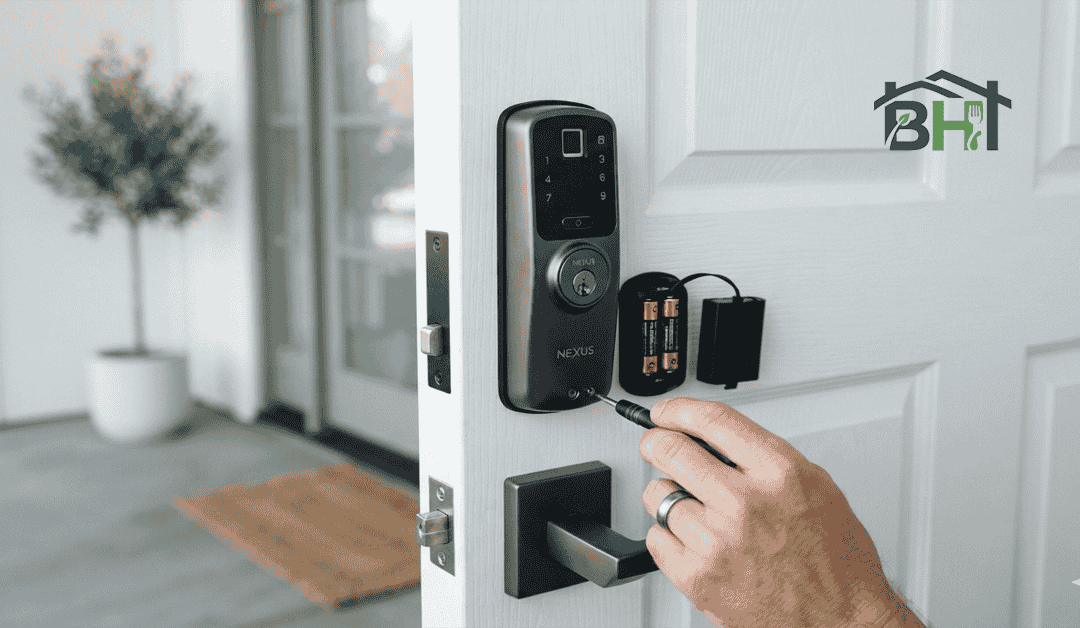
Smart locks are a convenient and secure way to manage access to your home. How to Reset a Smart Lock After a Battery Change. However, there are instances where a reset may be necessary, especially after a battery change. This can be frustrating, but understanding how to properly reset your smart lock can make the process smoother. In this guide, we will walk you through the general steps to reset your smart lock, followed by specific instructions for popular brands like August, Schlage, Yale, and Kwikset.
Why Resetting is Necessary After a Battery Change
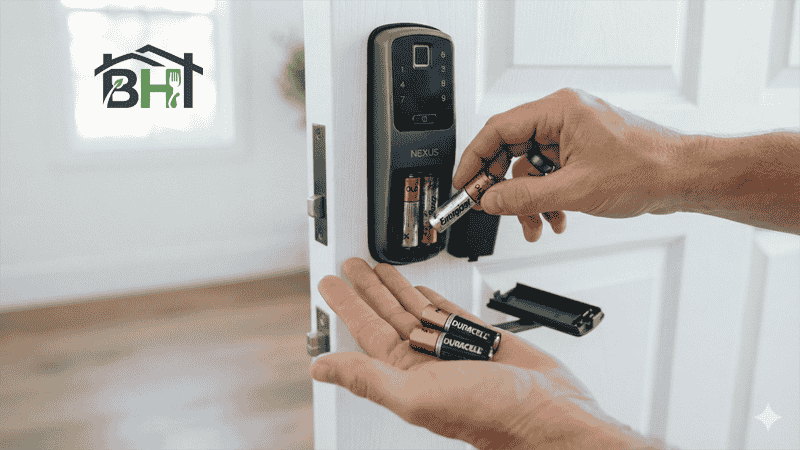
When you change the batteries in your smart lock, it may lose its settings or connection to your home network or app. This can result in issues like unlocking failures or the lock being unresponsive. Resetting your smart lock ensures that it correctly recognizes the new batteries and establishes a fresh connection with your smart home system.
Step-by-Step Guide to Resetting Your Smart Lock
1. Safety First: Before starting the reset, ensure you have the correct replacement batteries on hand. Refer to the user manual for the appropriate battery type for your smart lock.
2. Change the Batteries: Remove the old batteries and replace them with new ones, ensuring they are installed in the correct orientation If you own a Kwikset model, follow our step-by-step guide on how to change Kwikset smart lock batteries. Check for any corrosion or debris in the battery compartment before inserting the new batteries.
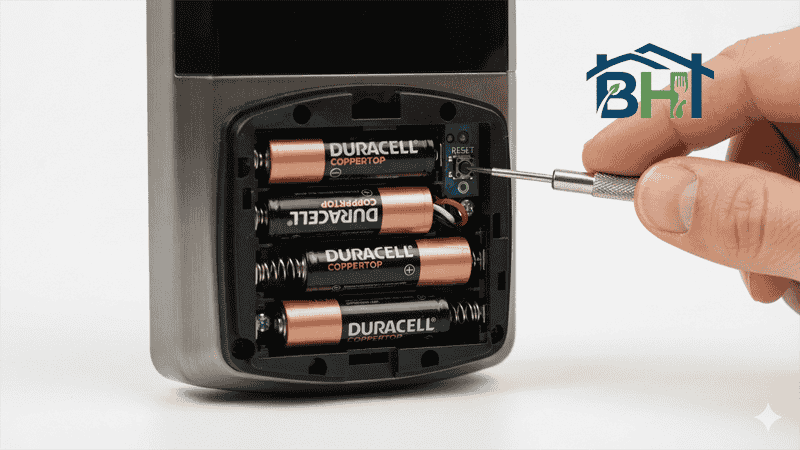
3.Locate the Reset Button: Most smart locks have a reset button, usually found inside the battery compartment. Consult your user manual if you’re having trouble finding it.
4. Press and Hold the Reset Button: With the batteries inserted, press and hold the reset button for about 10 to 15 seconds. The lock may emit a sound or flash lights to indicate that it is resetting.
5. Reconnect to the App: After the reset, open the smart lock app on your smartphone. Follow the instructions to reconnect or re-add your smart lock. This often involves scanning a QR code or entering a setup mode.
Specific Instructions for Popular Smart Lock Brands
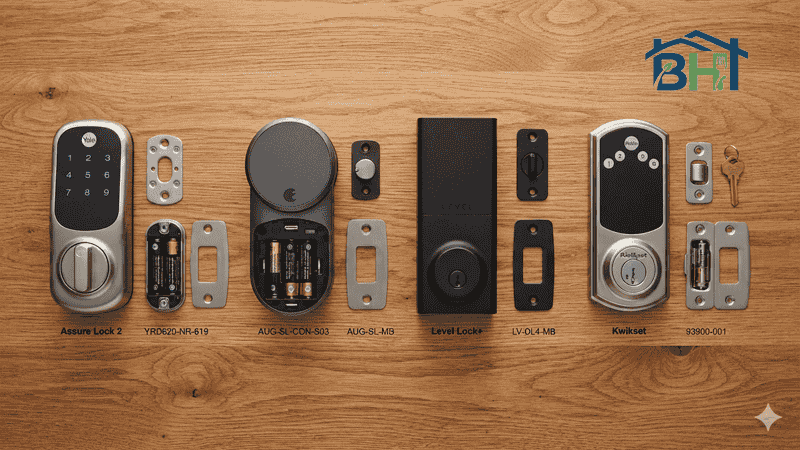
August Smart Lock
After changing the batteries, press the round button on the lock to initiate the reset.
Follow the prompts in the August app to reconnect your lock.
Schlage Smart Lock:
Remove the cover to reveal the reset button. Press and hold the reset button until the lock beeps, or consult the Schlage Help Center for app reconnection steps.
Yale Smart Lock:
Use a thin tool to press the reset button located on the back of the lock.
After resetting, open your Yale app and add the device again.
Kwikset Smart Lock:
Locate the reset button on the back of the lock.
Hold the button for several seconds until you hear a beep. Then, set it up again via the Kwikset app.
Troubleshooting Tips if the Lock Doesn’t Respond
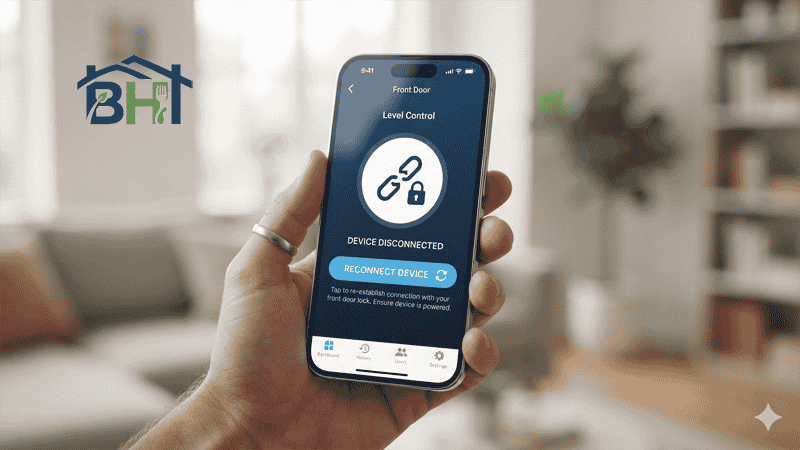
Check Battery Placement: Ensure that the new batteries are correctly positioned and fully charged.
Inspect for Damage: Examine the battery contacts and compartment for any signs of damage or debris.
App Updates: Make sure you have the latest version of the smart lock app installed.
Reboot Your Phone: Sometimes, restarting your smartphone can help re-establish the connection.
Refer to User Manual: Follow any additional troubleshooting steps provided in your user manual specific to your device.
Conclusion
Resetting your smart lock after a battery change is a crucial step to ensure continued functionality and security. By following the steps outlined in this guide, you’ll be able to quickly and efficiently reset your device, so you can get back to enjoying the convenience of keyless entry. If issues persist, consulting customer support for your specific brand can provide further assistance. Keeping your smart lock updated and properly maintained will enhance your home security for years to come.