
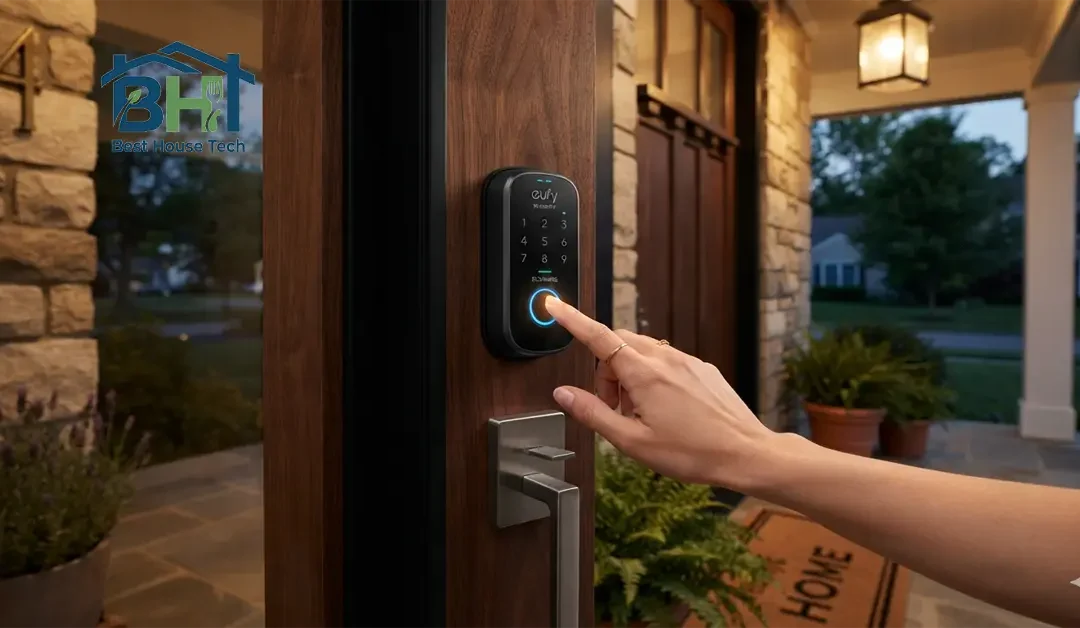
Fumbling for keys in the dark with arms full of grocery bags is one of those small daily annoyances that a smart lock is supposed to erase. Fingerprint entry is the feature that actually delivers on that promise. Touch the sensor, hear a click, and you’re in. No app to unlock, no code to punch in, no key to lose in the couch cushions.
But here’s the thing: a fingerprint scanner is only as good as its setup. Register your print sloppily, and you’ll be standing on your porch at 11 PM pressing your thumb against the pad five times before it finally gives up and lets you in. Do it right the first time, and you’ll forget it’s even a “feature” — it’ll just feel like your door recognizes you.
This guide walks through the whole process on the Eufy Security app, plus the small habits that make the difference between a scanner that works every time and one that becomes a source of quiet daily frustration.
Quick Checklist Before You Start
A couple of minutes of prep now saves you a re-do later. Before you touch the sensor, make sure you’ve got:
- The Eufy Security app updated: Old versions sometimes hide or rename the fingerprint menu, so check for updates in the App Store or Google Play first.
- A stable Wi-Fi or Bluetooth connection: Your phone needs to talk to the lock without dropouts mid-scan.
- Clean, dry hands: Lotion, sweat, or a bit of dish soap residue is the number one reason scans fail partway through.
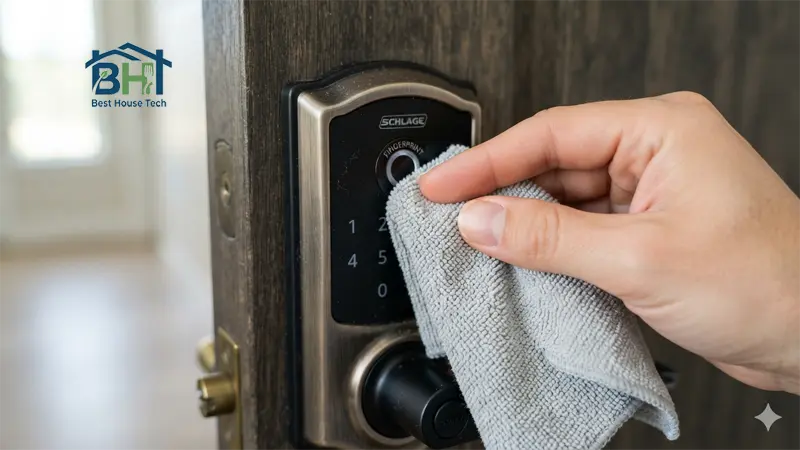
- A clean sensor: Wipe the fingerprint pad with a soft, dry cloth. Dust and fingerprint oil build-up on the scanner itself causes just as many problems as dirty fingers.
The lock already added to your app: If you haven’t paired the lock itself yet, do that first — fingerprint setup lives inside the device’s own settings, not a separate menu.
Step-by-Step: Adding Your Fingerprint
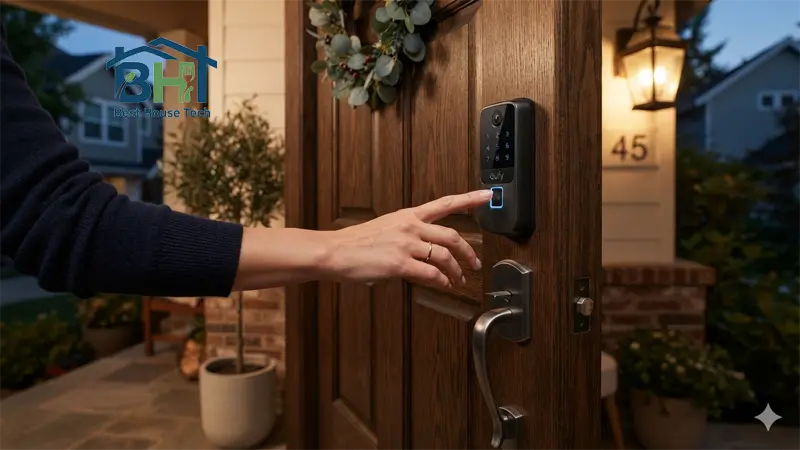
Step 1: Open the Eufy Security App and Select Your Lock
Launch the app and tap on your smart lock from the device list on the home screen. This drops you into the lock’s main control panel, where you can easily handle quick tasks like checking your smart lock battery level alongside basic lock and unlock status info.
Step 2: Head to Access Management
Look for Manage Access (sometimes labeled Fingerprint Management depending on your lock model) at the bottom of the lock’s screen. This is command central for every person and every entry method — fingerprints, PINs, and key cards — tied to your lock.
For yourself: If you already have access set up, tap your profile.
For someone new: If you’re adding someone new — a partner, a kid, or a dog walker — tap Add Access first and follow the prompts to create their profile before moving on.
Step 3: Scan Your Fingerprint
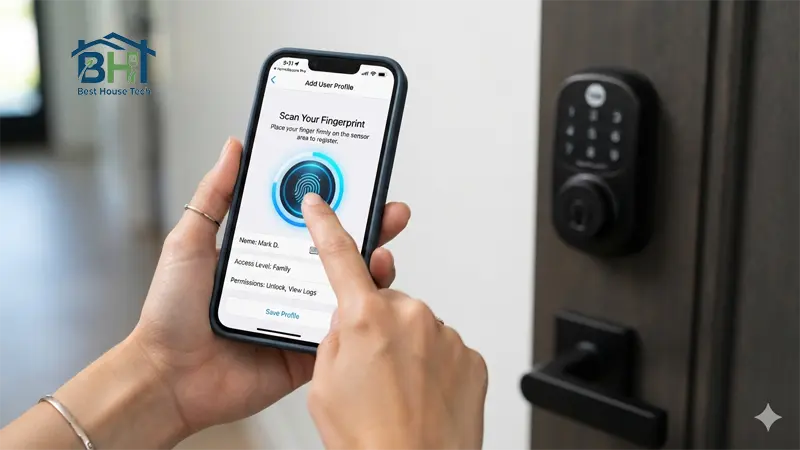
Inside the person’s Access Info screen, tap Fingerprint, then Start Enrollment. Now comes the part people rush: the app will ask you to press and lift your finger multiple times — usually around 8 scans — to build a complete map of your print.
Crucial Tip: Don’t just tap the same dead-center spot every time. Roll your finger slightly with each press: center, then a touch left, then a touch right, then closer to the tip, then closer to the base. The wider variety you feed it now, the fewer failed attempts you’ll get later in real life.
Step 4: Name It and Save
Once enrollment finishes, you’ll hear a confirmation beep and the app will ask you to label the fingerprint — “Right thumb,” “Mom’s index finger,” whatever helps you keep track. Save it, then test it immediately by locking the door and unlocking it with that exact finger.
Pro Tips for a Scanner That Never Lets You Down
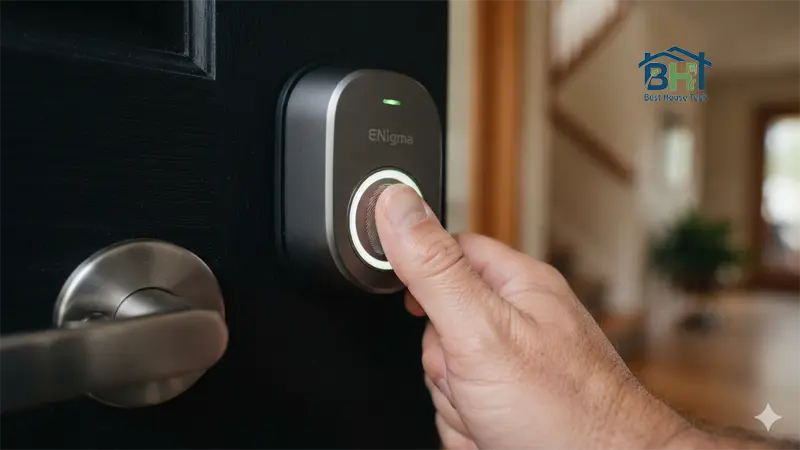
- Register your dominant thumb twice: Register it as two separate entries under different names (e.g., “Right Thumb 1” and “Right Thumb 2”). People naturally use slightly different pressure and angles when holding bags or phones.
- Add a backup finger from your other hand: Cuts, band-aids, and hand injuries happen. A second registered finger means a papercut won’t lock you out of your own house.
- Handle dry or moist skin carefully: In winter, dry skin can confuse the sensor — a tiny dab of lotion rubbed in and wiped mostly off helps. In summer, sweaty hands cause issues, so a quick wipe on your jeans before scanning does the trick.
- Set up individual profiles: Set up each family member under their own profile instead of sharing one. Individual profiles mean you can revoke access for one person later without disturbing anyone else.
- Use temporary PINs for guests: For short-term visitors, skip fingerprints entirely and use a temporary PIN code instead. It’s faster to set up and even faster to delete.
Quick Troubleshooting
Fingerprint not registering the way it should? Work through these before assuming the sensor is faulty:
- Clean the sensor and your finger: Use a dry microfiber cloth on the pad and make sure your finger is completely clean and dry.
- Re-calibrate or re-register the print: Delete the problem fingerprint from Manage Access and enroll it again from scratch. If the sensor still fails to respond after a recent battery swap, you may need to reset your smart lock properly before adding your prints back.
- Check for a firmware update: Eufy periodically pushes updates that improve sensor accuracy. Update the lock’s firmware through the app or check the Eufy Support Help Center if you need step-by-step help with updates.
- Confirm Bluetooth or Wi-Fi connection strength: A weak connection during enrollment can save a partial, low-quality fingerprint map.
- Try a different finger: Faint or worn ridges scan less reliably. If one finger consistently underperforms, register a different one.
Wrapping Up
Once your fingerprint is registered the right way — multiple angles, a clean sensor, a backup finger in your back pocket — you’ll stop thinking about your lock altogether, which is exactly the point. Here’s to a front door that just knows it’s you.